> ## Documentation Index
> Fetch the complete documentation index at: https://docs.listagent.pro/llms.txt
> Use this file to discover all available pages before exploring further.
# How to Connect Your Marketplace
> Step-by-step instructions for connecting eBay, Poshmark, Mercari, Depop, Vinted, Grailed, and Whatnot to ListAgent.
Connecting your marketplace accounts enables ListAgent to publish listings directly, crosslist inventory across platforms, and track sales to prevent double-selling.
## Integration Architecture: Direct API vs. Chrome Extension
ListAgent uses two distinct methods to integrate with selling channels depending on the platform's API architecture:
| Channel | Method | How It Works |
| :----------------------------------------------------- | :------------------- | :--------------------------------------------------------------------------------------------------------------------------------------- |
| **eBay** | **Direct API** | Server-to-server connection. Listings, updates, and delists sync directly through ListAgent without requiring an active browser session. |
| **Poshmark, Mercari, Depop, Vinted, Grailed, Whatnot** | **Chrome Extension** | Browser-assisted crosslisting. The ListAgent Chrome Extension automates crosslisting and sales tracking through your browser sessions. |
***
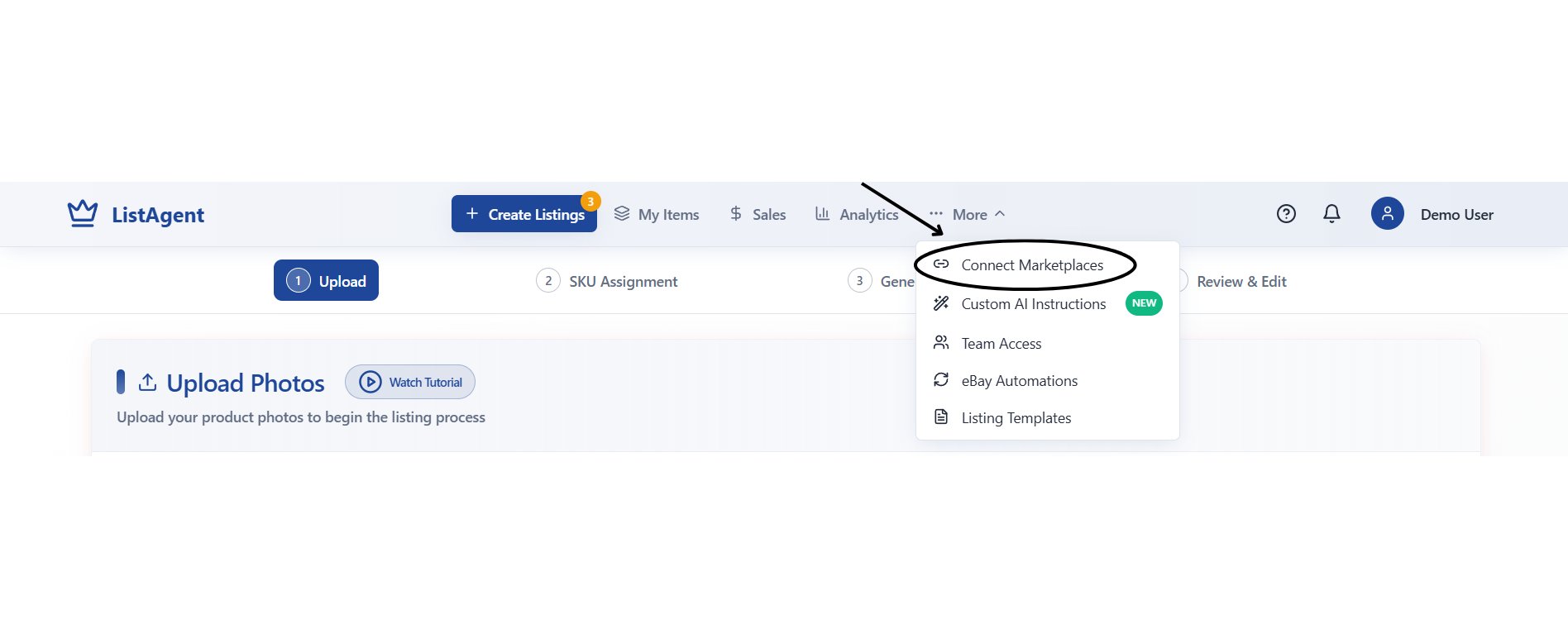
## Step 1: Open Marketplace Connections
1. Log in to your ListAgent .
2. Click the **More** dropdown menu in the top navig.
3. Select \*\*Connect Marke.
 ***
## Step 2: Connect eBay (Direct API Integration)
***
## Step 2: Connect eBay (Direct API Integration)
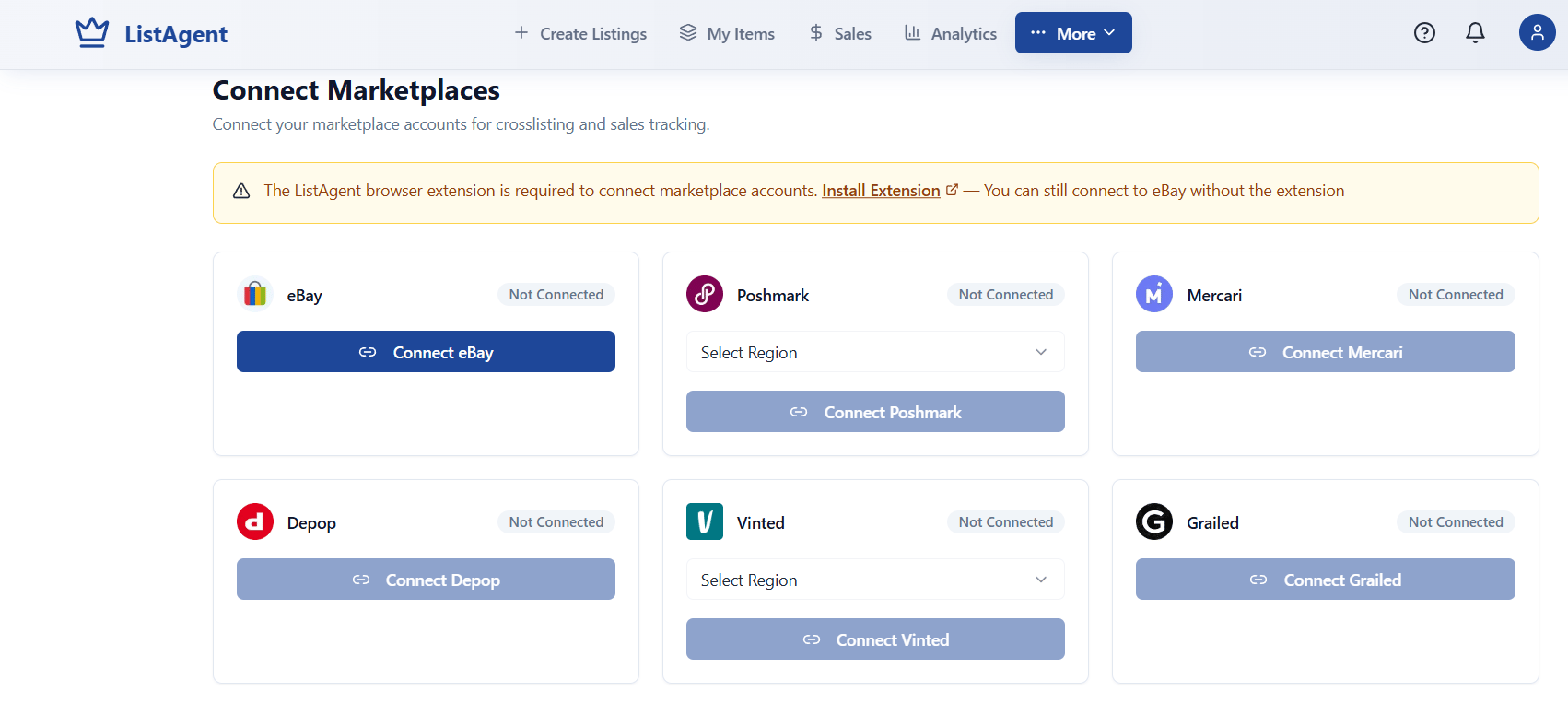 1. Locate the **eBay** card and click the **Connect eBay** button.
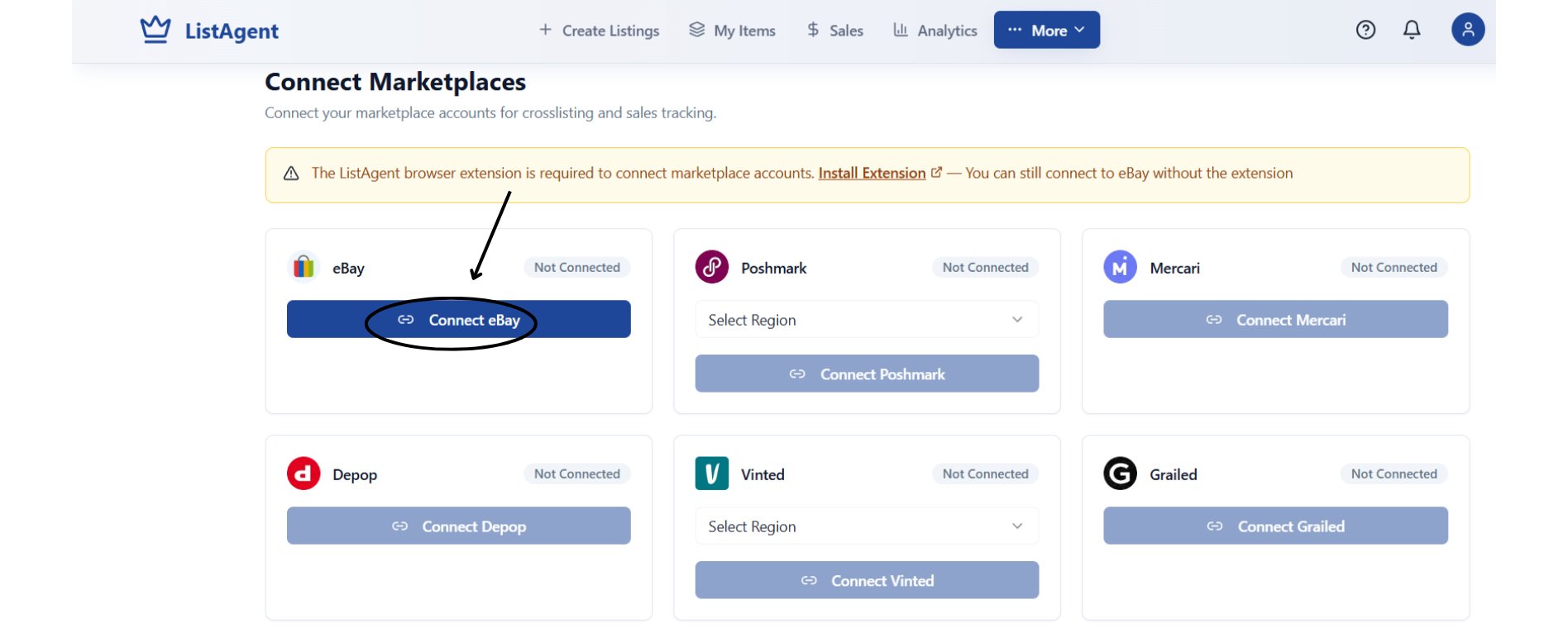 2. You will be redirected to the official eBay authorization page\[cite: 5]. Sign in to your eBay seller account and approve ListAgent permissions.
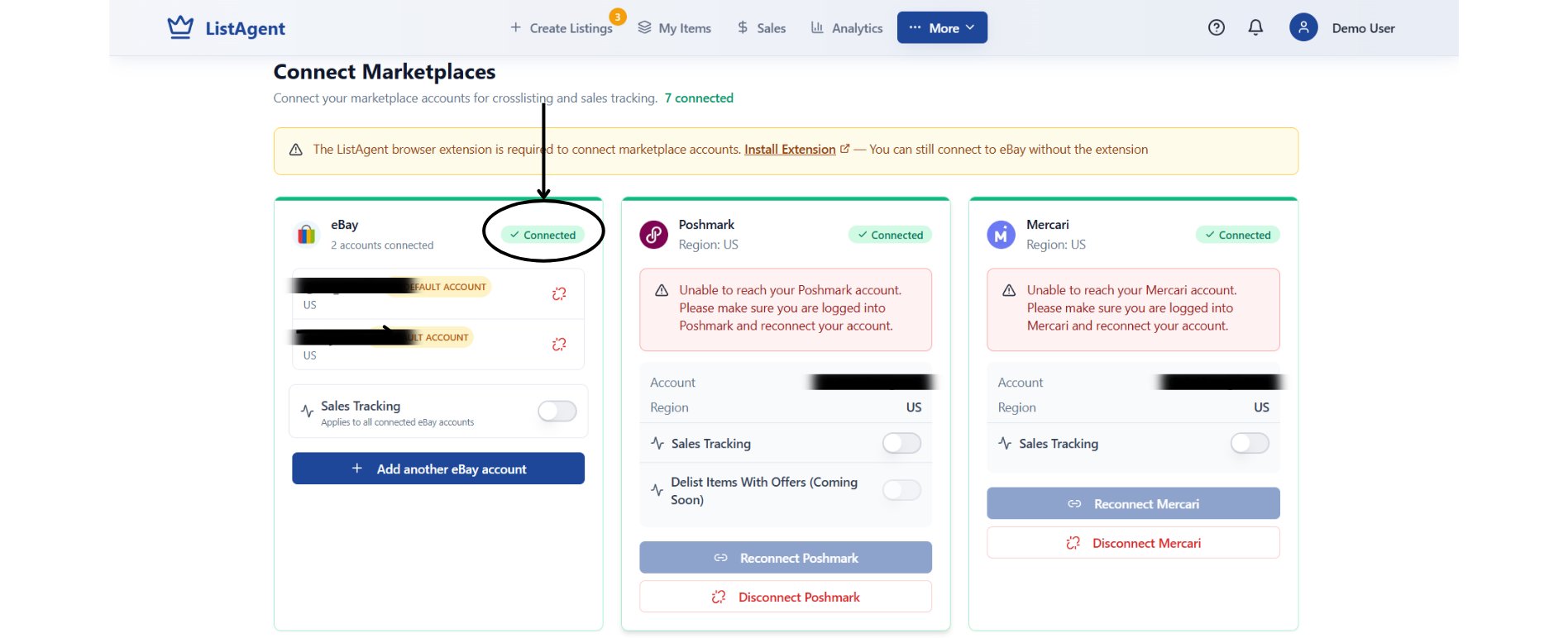
3. Once authorized, you will return to ListAgent. Confirm the eBay card displays a green **Connected** badge.
2. You will be redirected to the official eBay authorization page\[cite: 5]. Sign in to your eBay seller account and approve ListAgent permissions.
3. Once authorized, you will return to ListAgent. Confirm the eBay card displays a green **Connected** badge.
 **Important eBay Setup Prerequisites:**
Before you can publish listings to eBay through any third-party tool, eBay requires:
* **Business Policies:** Active preset policies configured for Payment, Shipping, and Returns.
* **Inventory Location:** At least one valid fulfillment address/location registered on your eBay account.
***
## Step 3: Connect Other Marketplaces (Chrome Extension)
For Poshmark, Mercari, Depop, Vinted, Grailed, and Whatnot, crosslisting is handled via the **ListAgent Crosslist** Chrome Extension.
**Important eBay Setup Prerequisites:**
Before you can publish listings to eBay through any third-party tool, eBay requires:
* **Business Policies:** Active preset policies configured for Payment, Shipping, and Returns.
* **Inventory Location:** At least one valid fulfillment address/location registered on your eBay account.
***
## Step 3: Connect Other Marketplaces (Chrome Extension)
For Poshmark, Mercari, Depop, Vinted, Grailed, and Whatnot, crosslisting is handled via the **ListAgent Crosslist** Chrome Extension.
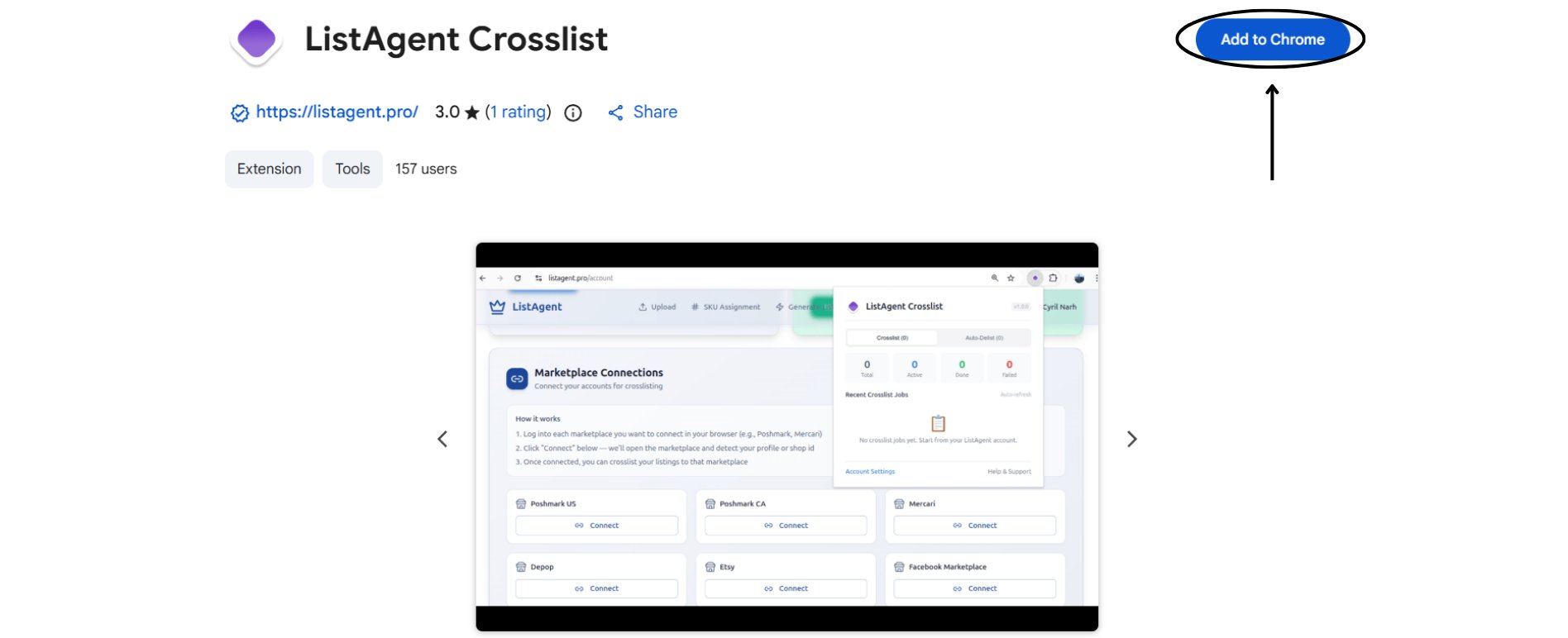 Visit the Chrome Web Store, search for **ListAgent Crosslist**, and click **Add to Chrome**.
Open separate browser tabs and log in to your seller accounts on the platforms you want to connect (e.g., Poshmark, Mercari, Depop).
Navigate back to **Connect Marketplaces** in ListAgent\[cite: 5]. Click **Connect \[Marketplace]** on the relevant card. The extension will detect your active session and establish the bridge.
Toggle the **Sales Tracking** switch on each connected marketplace card\[cite: 2, 5]. This allows ListAgent to detect when an item sells and automatically attempt to delist it across your other connected channels.
***
## Monitoring Connection Health
Regularly check your **Connect Marketplaces** screen to ensure accounts remain authorized:
* **Green `Connected` Badge:** The connection is healthy and ready for publishing.
* **Red Warning Banner (e.g., *Unable to reach account*):** Your marketplace session expired. Click **Reconnect** while logged in to the marketplace in another tab to restore the link.
***
## Troubleshooting Common Connection Issues
* **Marketplace Shows "Not Connected" After Authorization:** Ensure third-party cookies and pop-ups are allowed in your browser, then retry the connection.
* **eBay Listings Fail Immediately Upon Publishing:** Check your account settings to confirm that your default eBay Business Policies and Inventory Location are linked.
* **Chrome Extension Crosslisting Fails to Trigger:** Verify that the extension is pinned, active, and that you are currently logged into the target platform in your browser.
Visit the Chrome Web Store, search for **ListAgent Crosslist**, and click **Add to Chrome**.
Open separate browser tabs and log in to your seller accounts on the platforms you want to connect (e.g., Poshmark, Mercari, Depop).
Navigate back to **Connect Marketplaces** in ListAgent\[cite: 5]. Click **Connect \[Marketplace]** on the relevant card. The extension will detect your active session and establish the bridge.
Toggle the **Sales Tracking** switch on each connected marketplace card\[cite: 2, 5]. This allows ListAgent to detect when an item sells and automatically attempt to delist it across your other connected channels.
***
## Monitoring Connection Health
Regularly check your **Connect Marketplaces** screen to ensure accounts remain authorized:
* **Green `Connected` Badge:** The connection is healthy and ready for publishing.
* **Red Warning Banner (e.g., *Unable to reach account*):** Your marketplace session expired. Click **Reconnect** while logged in to the marketplace in another tab to restore the link.
***
## Troubleshooting Common Connection Issues
* **Marketplace Shows "Not Connected" After Authorization:** Ensure third-party cookies and pop-ups are allowed in your browser, then retry the connection.
* **eBay Listings Fail Immediately Upon Publishing:** Check your account settings to confirm that your default eBay Business Policies and Inventory Location are linked.
* **Chrome Extension Crosslisting Fails to Trigger:** Verify that the extension is pinned, active, and that you are currently logged into the target platform in your browser.