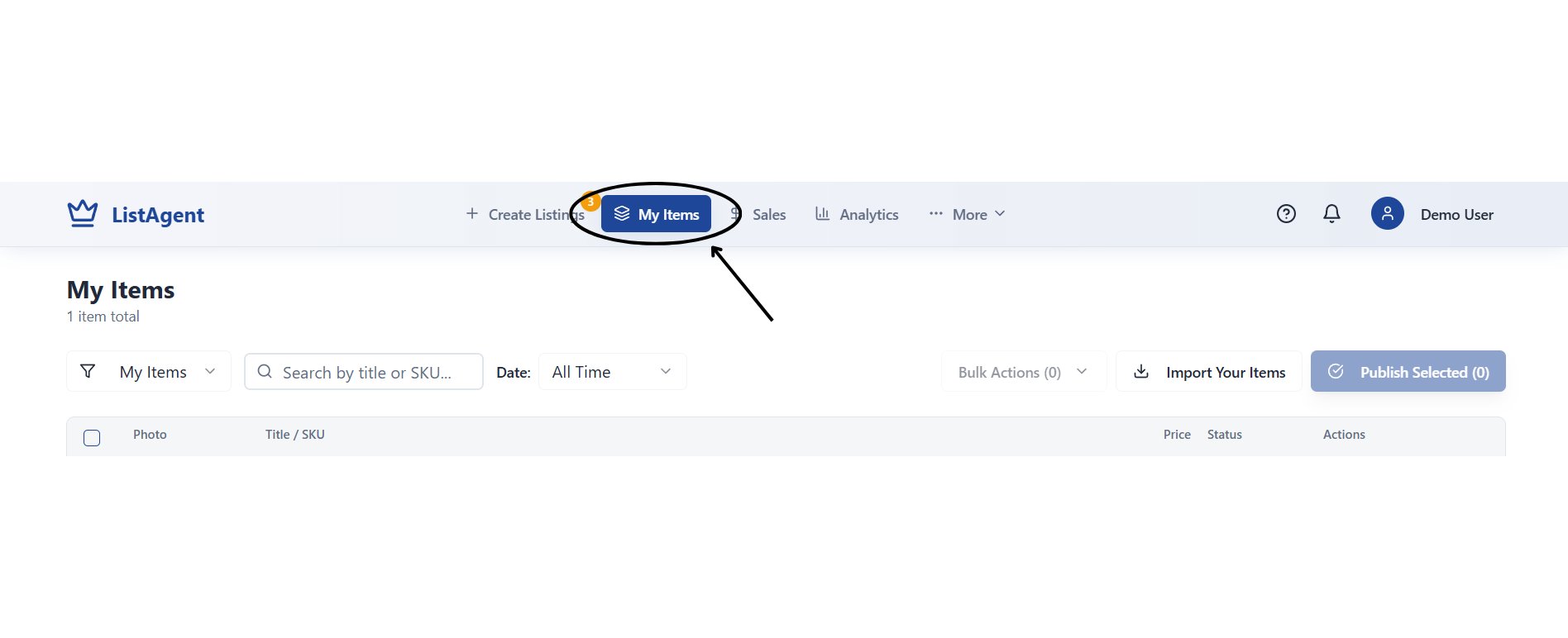
My Items dashboard with search, date filters, and bulk inventory actions
Core Inventory Tasks
1. Finding and Filtering Listings
Use the search bar and filter controls at the top of the My Items screen to locate specific inventory items:- Search: Search by listing title, SKU code, or product keywords.
- Date Filters: Filter listings by creation date, publication date, or view all-time inventory.
- Status Views: Filter items by status (e.g., Draft, Published, Sold, or Ended).
2. Editing an Existing Listing
To update an active or draft listing:- Locate the item in your catalog and click Edit Listing.
- Update the relevant fields in the editor:
- Title & Description: Refresh keywords or update product descriptions.
- Pricing & Quantity: Adjust item prices or update available inventory counts.
- Item Specifics & Condition: Update condition notes, size attributes, or brand specifics.
- Click Save Changes or Update to apply your modifications across connected platforms.
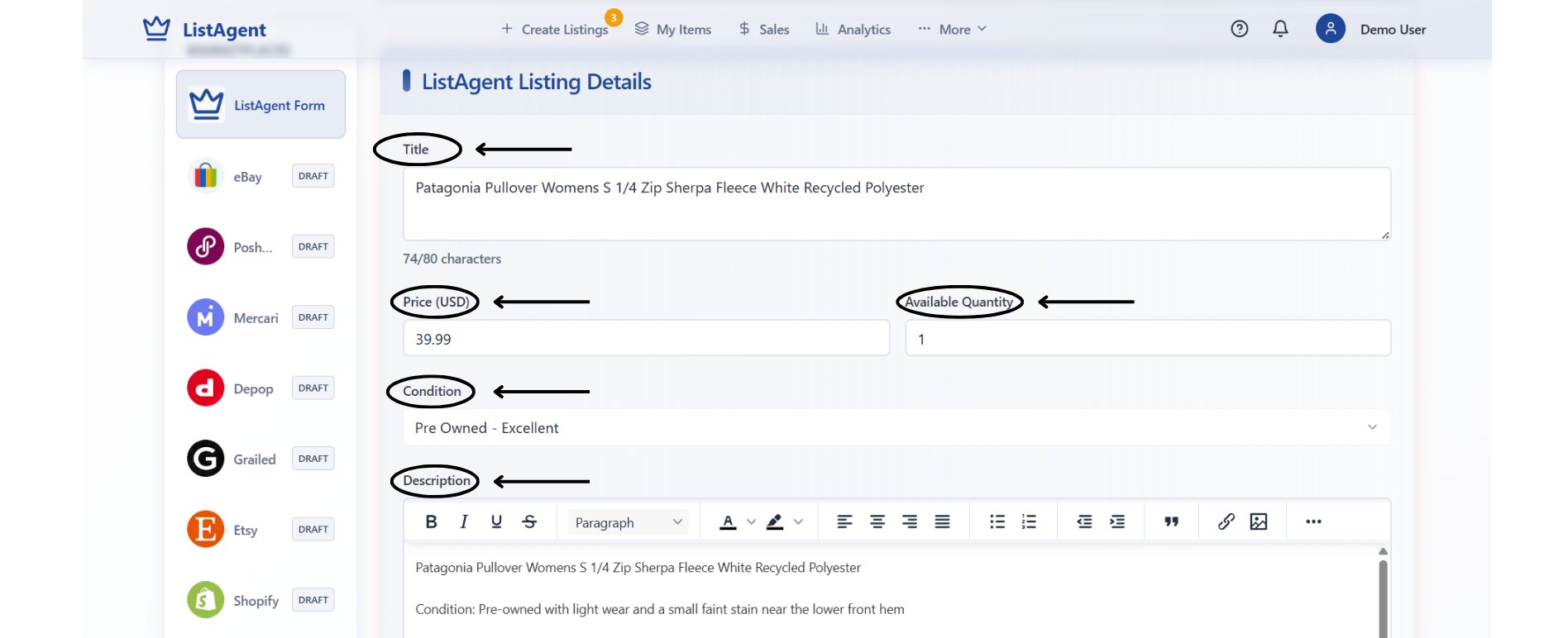
Detailed listing form for updating item titles, pricing, condition, and specifics
3. Managing Product Photos
While in edit mode, you can manage the images attached to your listing:- Reorder Images: Change the display order to choose which photo serves as the primary marketplace cover shot.
- Add New Images: Upload supplemental photos showing additional angles or tags.
- Remove Images: Delete outdated or duplicate photos.
Delisting vs. Deleting Listings
Understanding the difference between Delisting and Deleting prevents accidental data loss and ensures accurate inventory tracking across multiple marketplaces.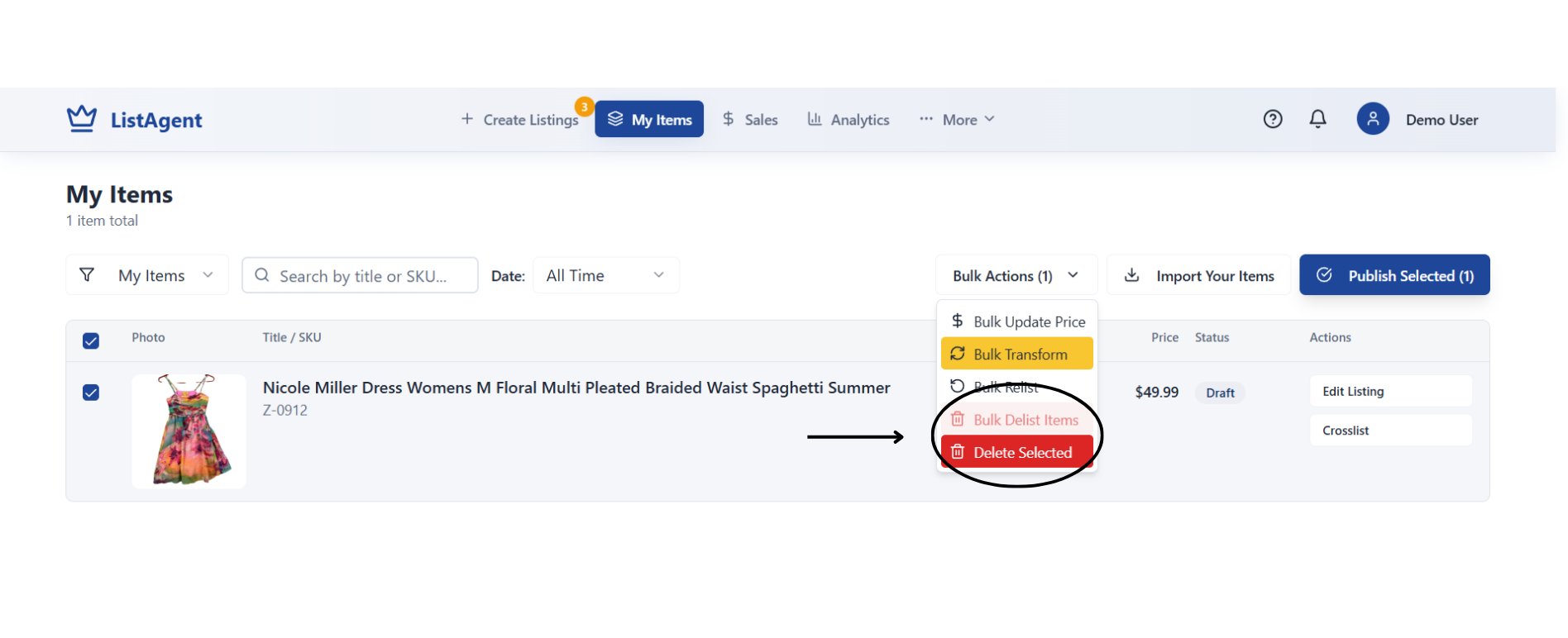
Bulk Actions dropdown menu highlighting Delist and Delete actions
Bulk Inventory Operations
If you need to make changes across multiple listings at once, use the Bulk Actions menu to save time.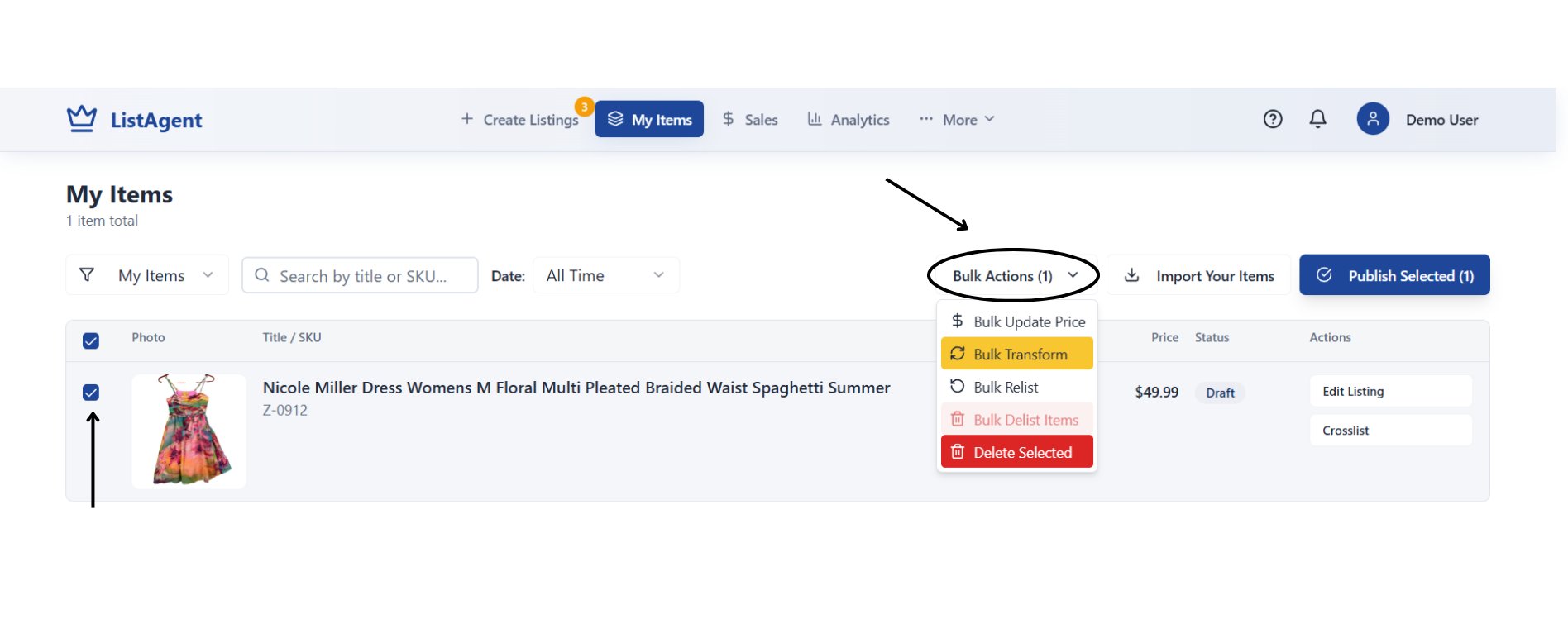
Select multiple rows to trigger Bulk Update Price, Bulk Transform, or Bulk Delist
Available Bulk Operations:
- Bulk Update Price: Apply a flat rate or percentage price adjustment across multiple selected eBay listings simultaneously.
- Bulk Transform: Re-run formatting rules or AI transformations across selected rows to update titles and descriptions.
- Bulk Relist: Re-publish ended or delisted items in batch.
- Bulk Delist Items: Withdraw multiple active listings from external marketplaces in one click.
Best Practices for Inventory Hygiene
- Verify Selections Before Running Bulk Actions: Bulk changes cannot be undone automatically; double-check the checkboxes next to your items before applying batch updates.
- Maintain Accurate Item Specifics: Periodically review titles, condition ratings, and specifics to ensure marketplace compliance and search visibility.
- Audit Marketplace Status Badges: After making updates or triggering bulk actions, check the status badges in My Items to confirm changes were synchronized with external channels.
Troubleshooting Common Issues
- Cannot Find a Listing: Ensure your search term matches the SKU or title, and verify that the date filter is set to All Time.
- Edit Option is Disabled: Some marketplaces restrict editing while an item has active pending offers or bids; verify the item’s current marketplace status.
- Changes Did Not Appear on Marketplace: Allow a few minutes for API synchronization to complete. If the marketplace still shows old information, check the Publish Jobs panel for sync error messages.